Everything in Catalogue Master, one step at a time
From creating your account to your first WhatsApp order and your first generated post. Each step shows the exact screen you will see. Want to see a finished one? Open the demo catalogue.
Create your account
Go to the home page and fill in the Create account card. Your catalogue address is created from the business name; you can change it before you submit.
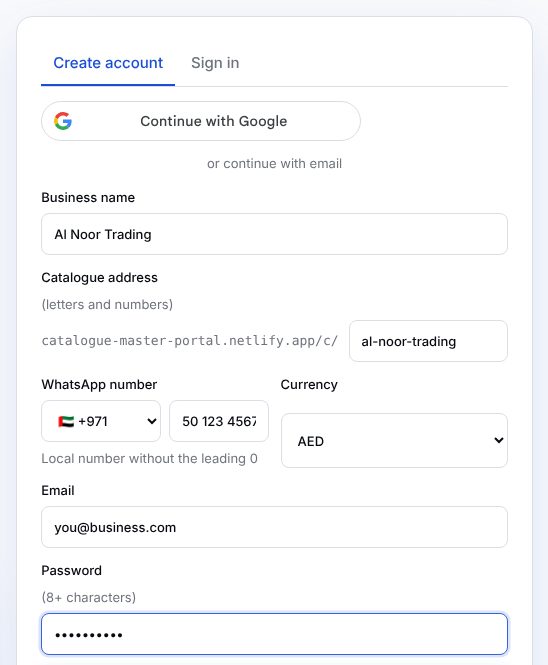
- Business name — shown on your catalogue and every generated post.
- Catalogue address — letters, numbers and dashes only. This becomes your public link.
- WhatsApp number — the number customers' orders go to. Check the country code.
- Currency — used for prices everywhere; you can change it later in Brand & settings.
Save your recovery key
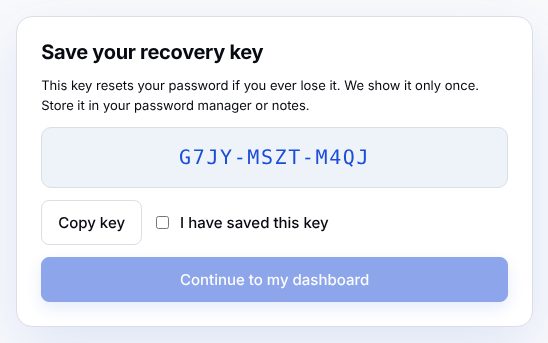
Right after sign-up you see a 12-character recovery key. It is shown once. It is how you reset your password if you forget it.
Your dashboard
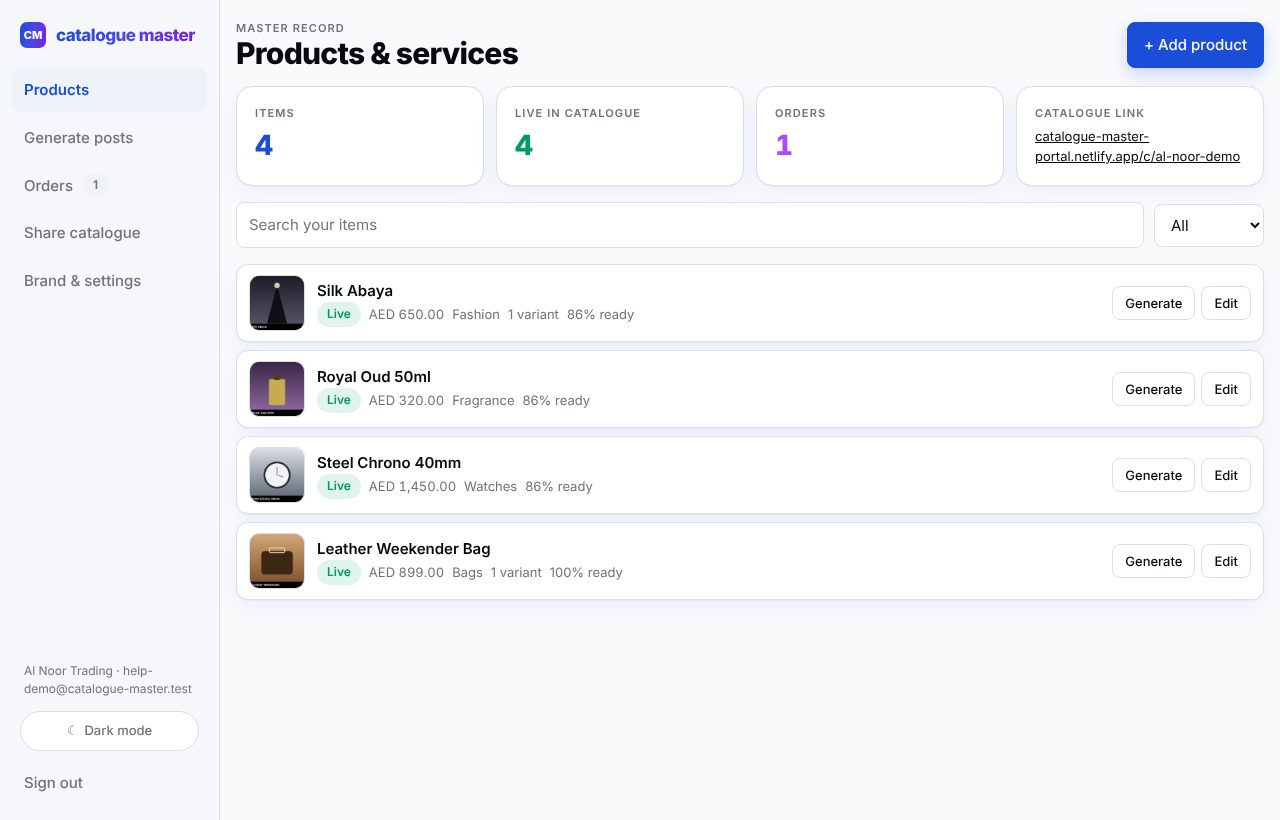
The left menu is the whole app: Products, Generate posts, Orders, Share catalogue, Brand & settings. The tiles show how many items you have, how many are live, your orders and your catalogue link.
Add a product or service
Click + Add product. Only the name is required, but the bar at the top tells you what is missing to generate every channel: a photo, a price, a one-line hook, two highlights, a description and a category.
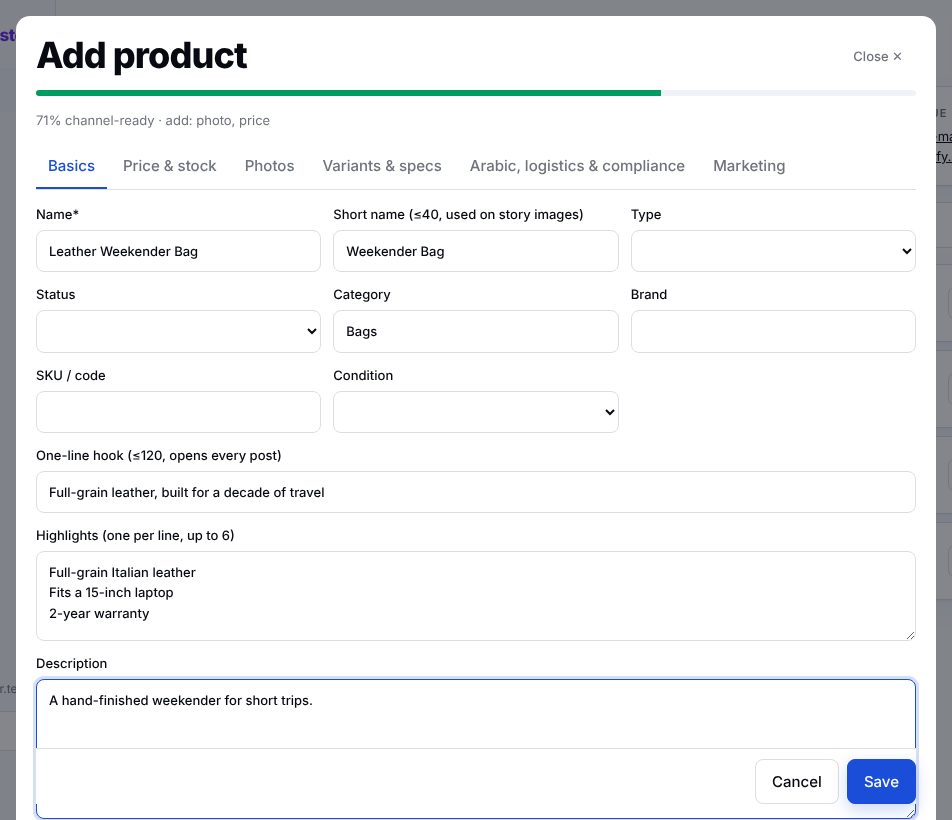
- Type — Product or Service. Services show "Ask for a quote" when no price is set.
- Status — Draft keeps it hidden from customers until you are ready.
- Highlights — one per line, up to six. They become the ✓ bullets in posts.
Price, stock and B2B tiers
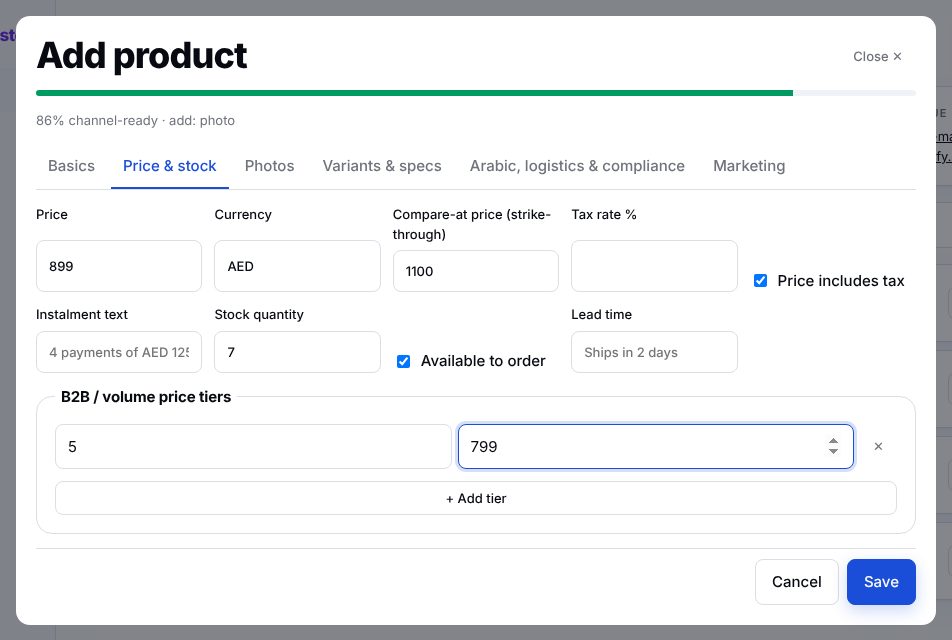
Set the price, an optional compare-at price (shown struck through with a discount badge), tax, stock and lead time. Volume tiers give wholesale buyers a lower unit price automatically.
Photos
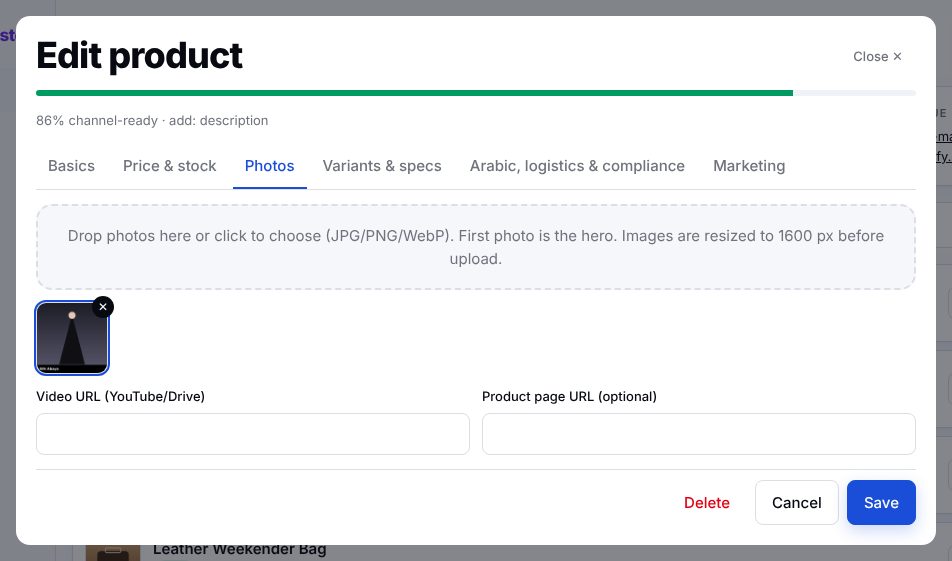
Drop up to 10 photos. They are resized to 1600 px on your device before upload, so even phone photos upload fast. The first photo is the hero; click any photo to make it the hero.
Variants and specs
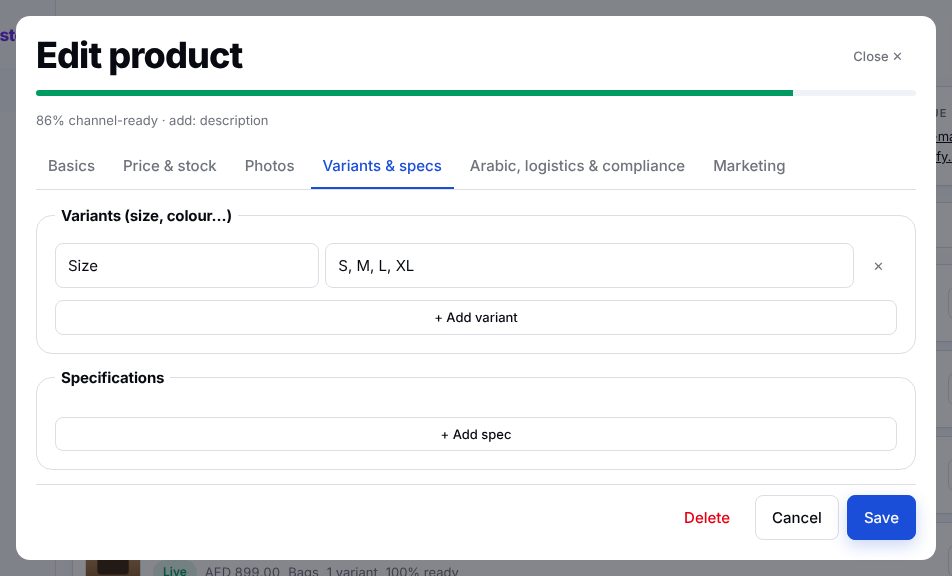
Add variants like Colour or Size with comma-separated options; customers choose them before adding to the order. Specs become a neat table on the product page and in marketplace listings.
Arabic, logistics and compliance
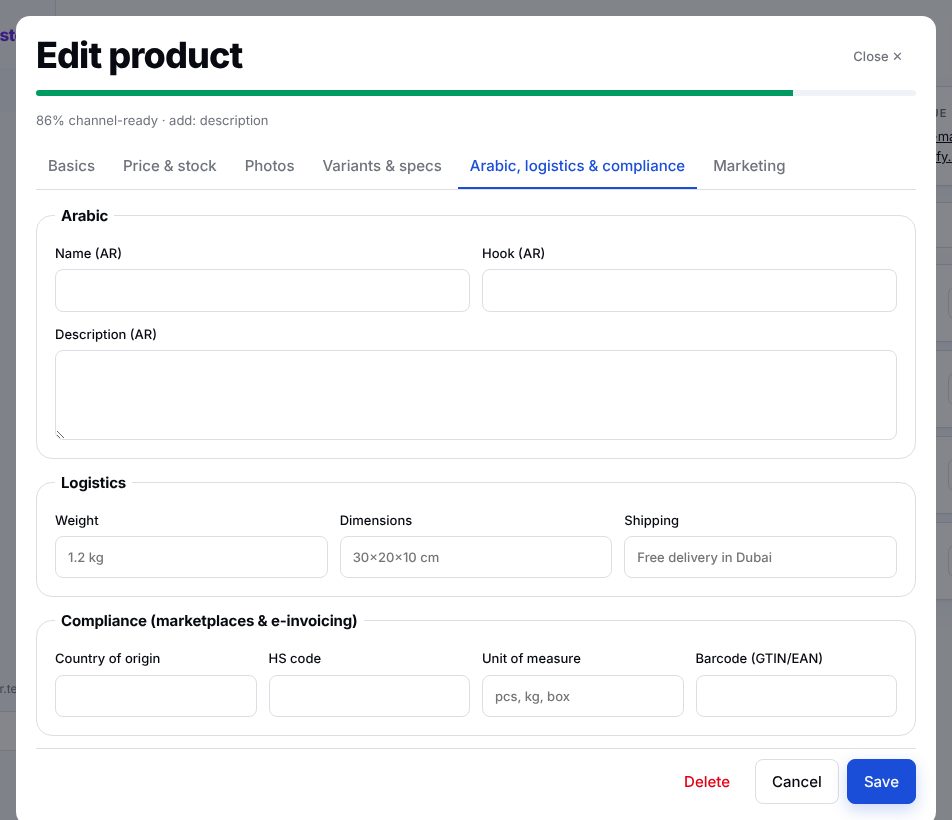
Add the Arabic name, hook and description and your catalogue gets an العربية switch automatically. Logistics and compliance fields (origin, HS code, unit, barcode) are what marketplaces and e-invoicing ask for.
Share your catalogue
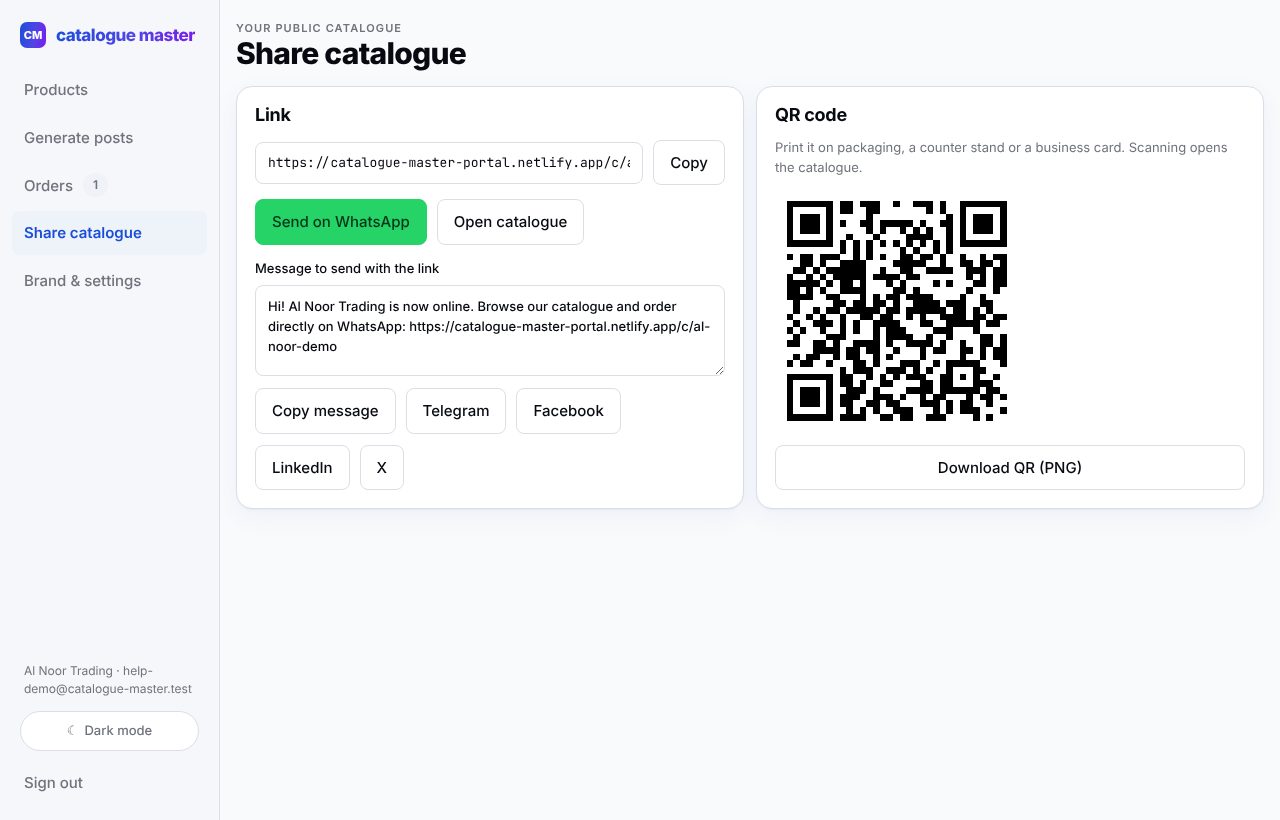
Open Share catalogue. Copy the link, send it on WhatsApp with the ready-made message, or download the QR code for packaging, your counter or a business card.
How customers order
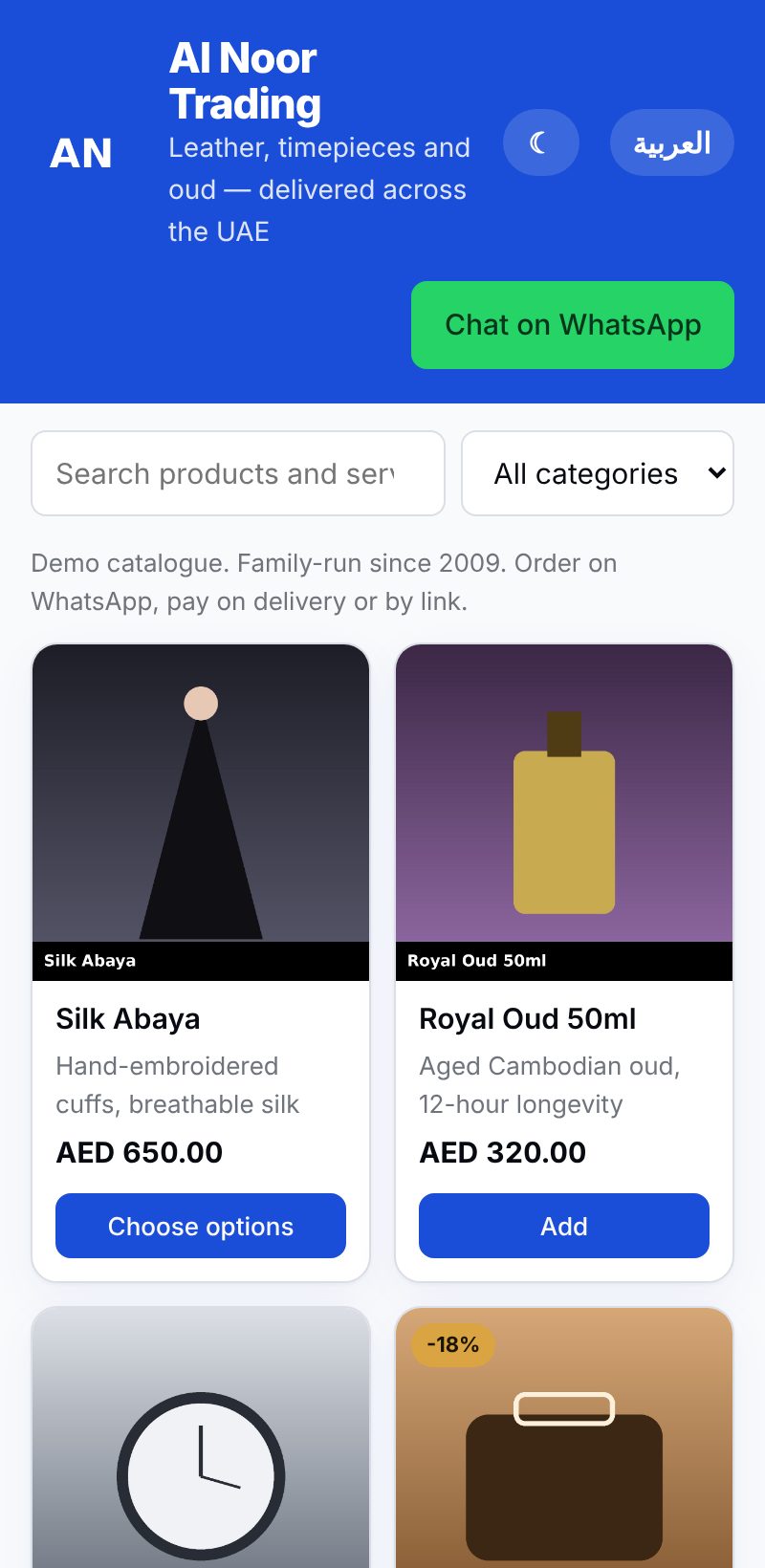
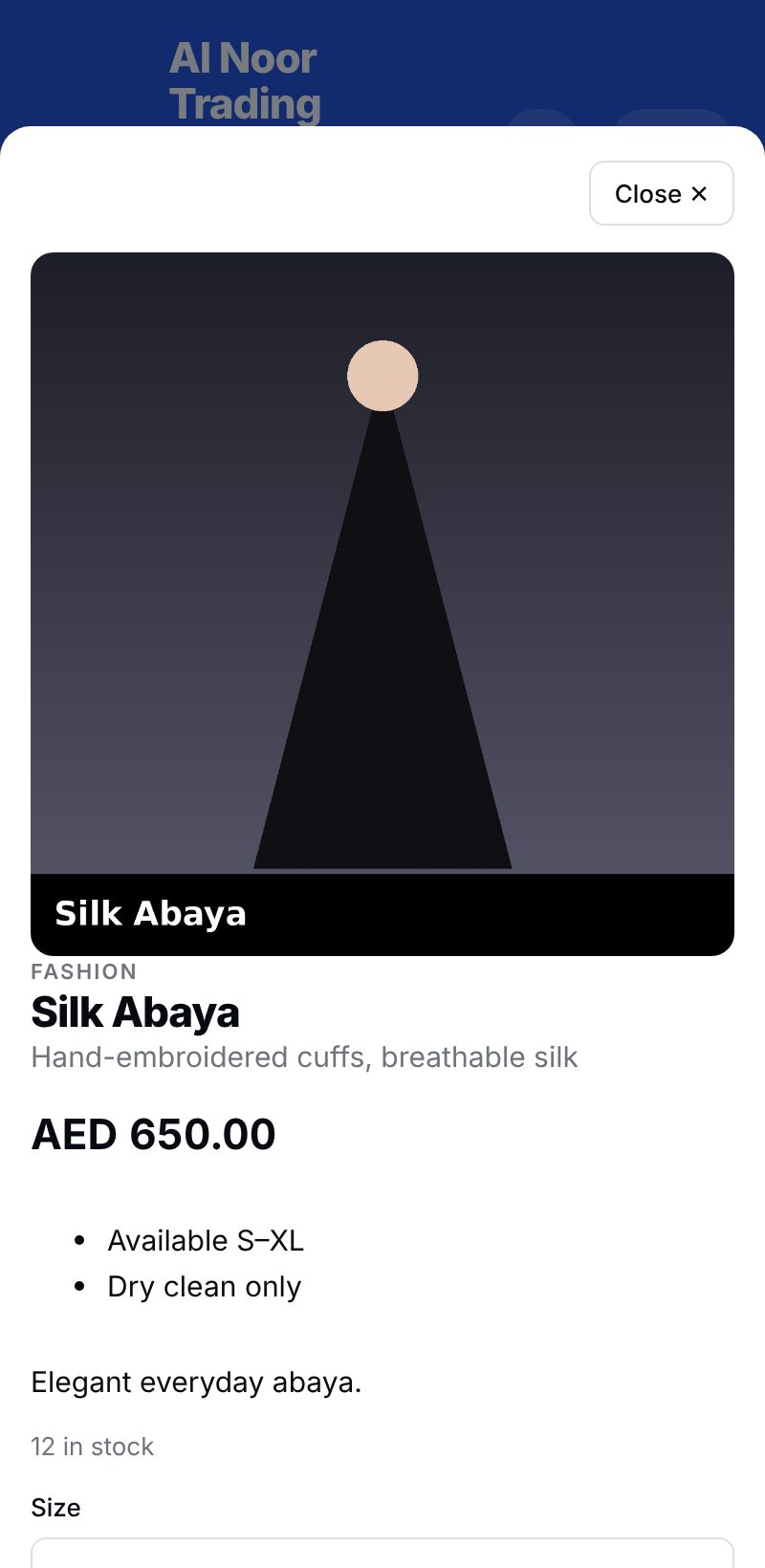
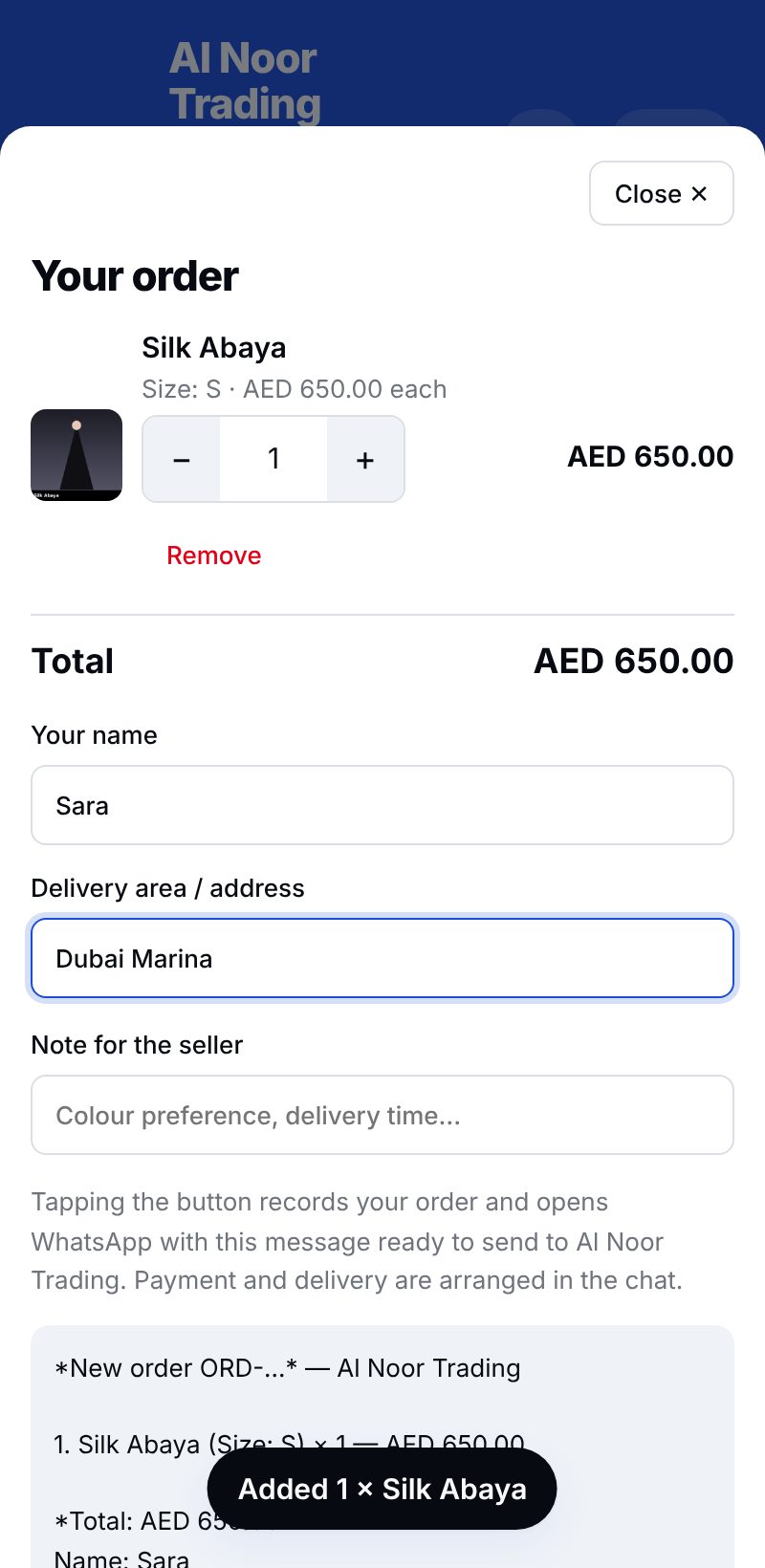
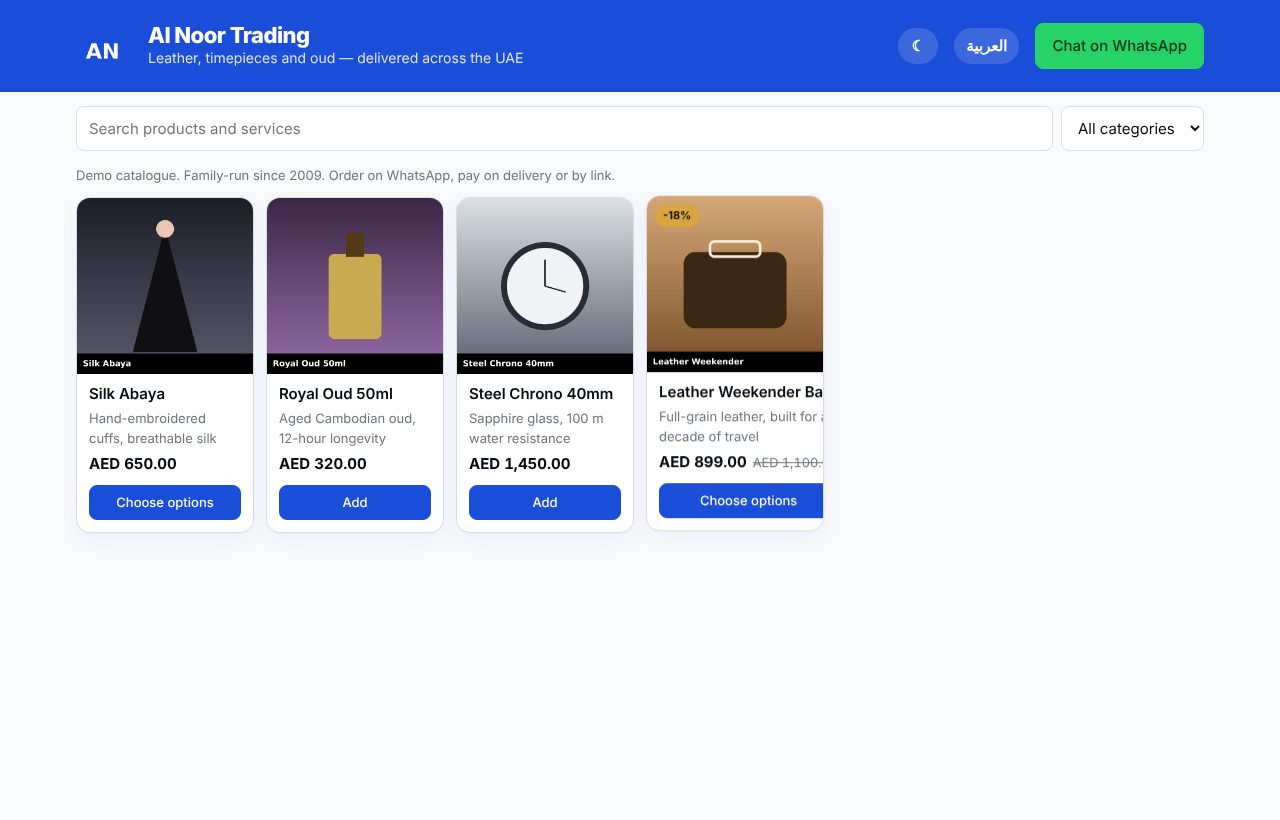
Customers need no app and no account. They open your link, browse, pick options and quantity, then tap Send order on WhatsApp. The order is saved with a reference and WhatsApp opens with the full message ready to send to you.
Orders
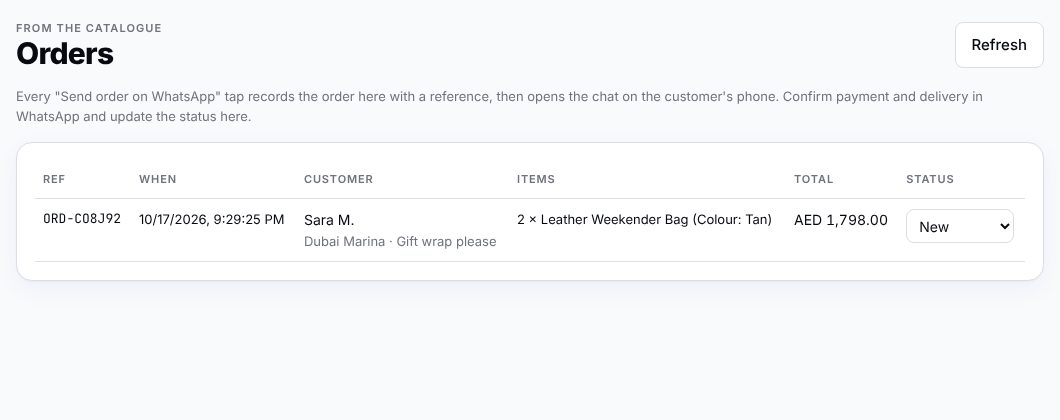
Every order a customer sends appears under Orders with its reference, items, total and the customer's name, area and note. Confirm payment and delivery in WhatsApp, then update the status here.
Generate posts and messages
Open Generate posts, pick a product and click a channel. You get the text and a correctly sized image at once. Edit either, then copy, download or share straight into the app.
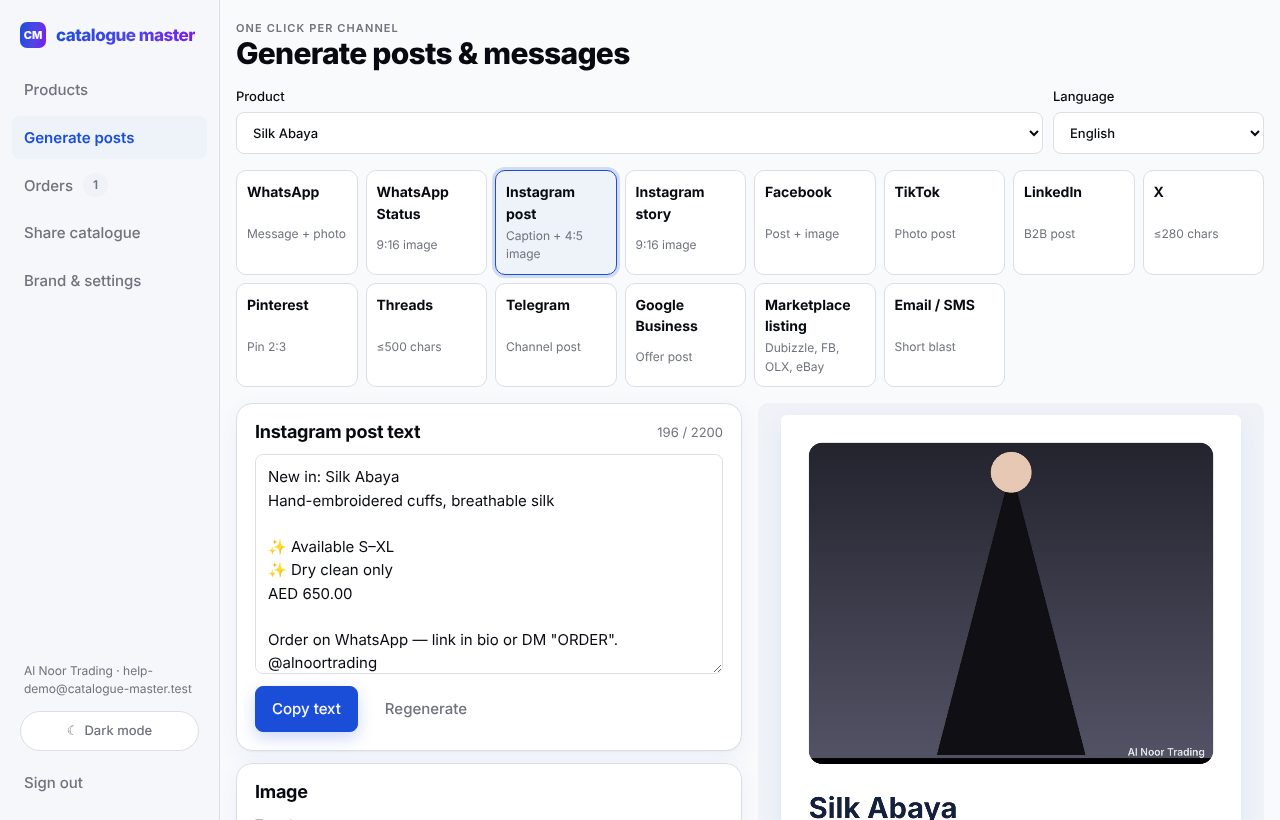
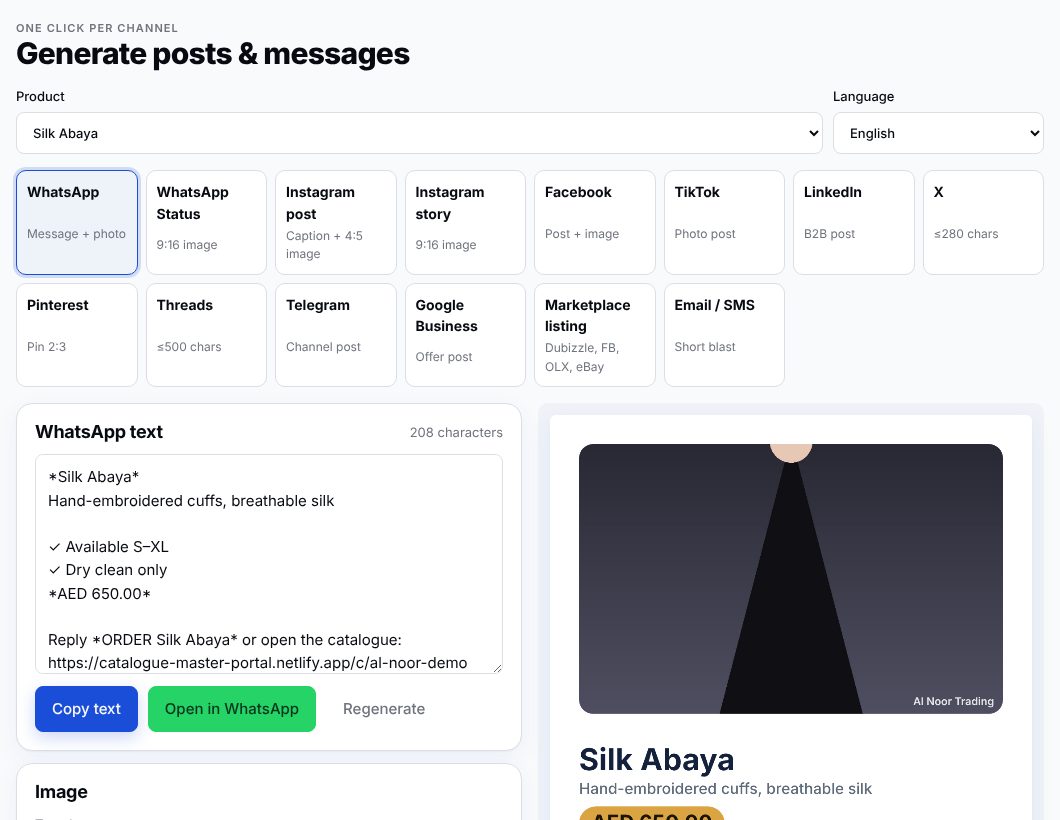
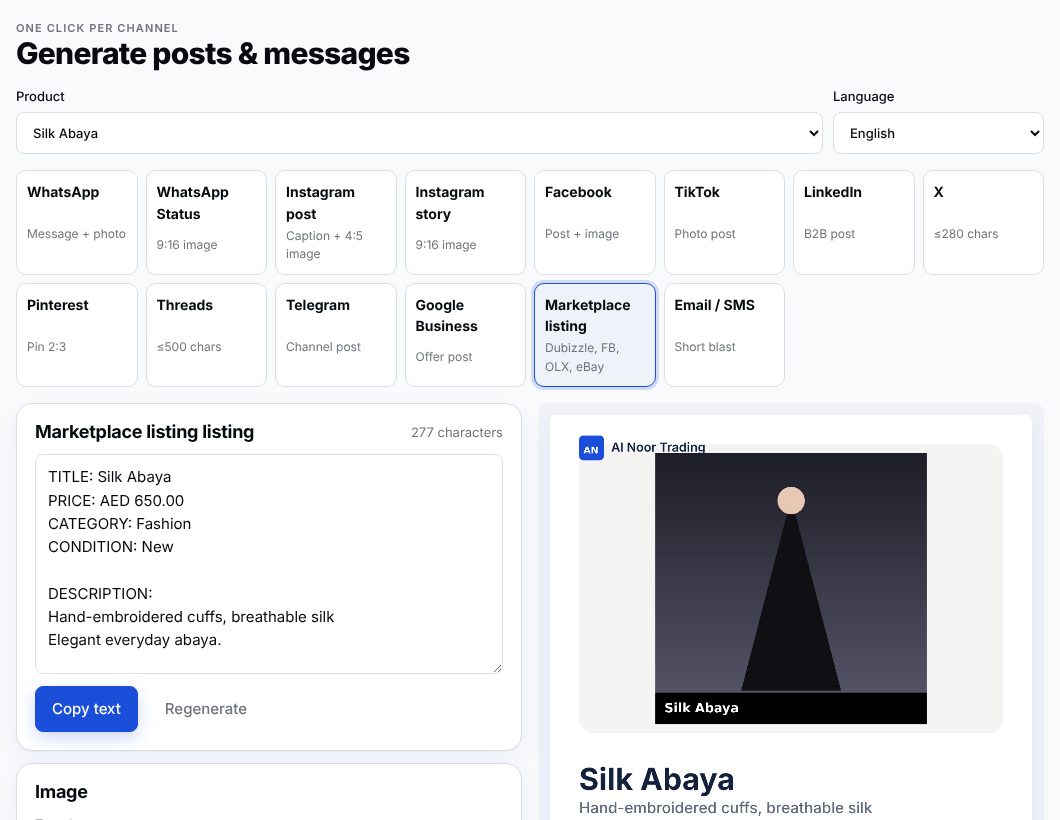
- Template — Minimal, Bold sale, Luxury, Clean (white, for marketplaces) or Spec sheet.
- Size — Square 1:1, Portrait 4:5, Story 9:16, Landscape 16:9, Pin 2:3 and 4:3. The channel picks the right one; you can switch.
- Headline, sub-line, price badge, CTA, colours, photo — all editable; the preview updates live.
- Language — switch to Arabic to generate from the Arabic fields with a right-to-left image.
- Download image saves a PNG; Copy image puts it on the clipboard to paste into the app.
Brand kit and settings
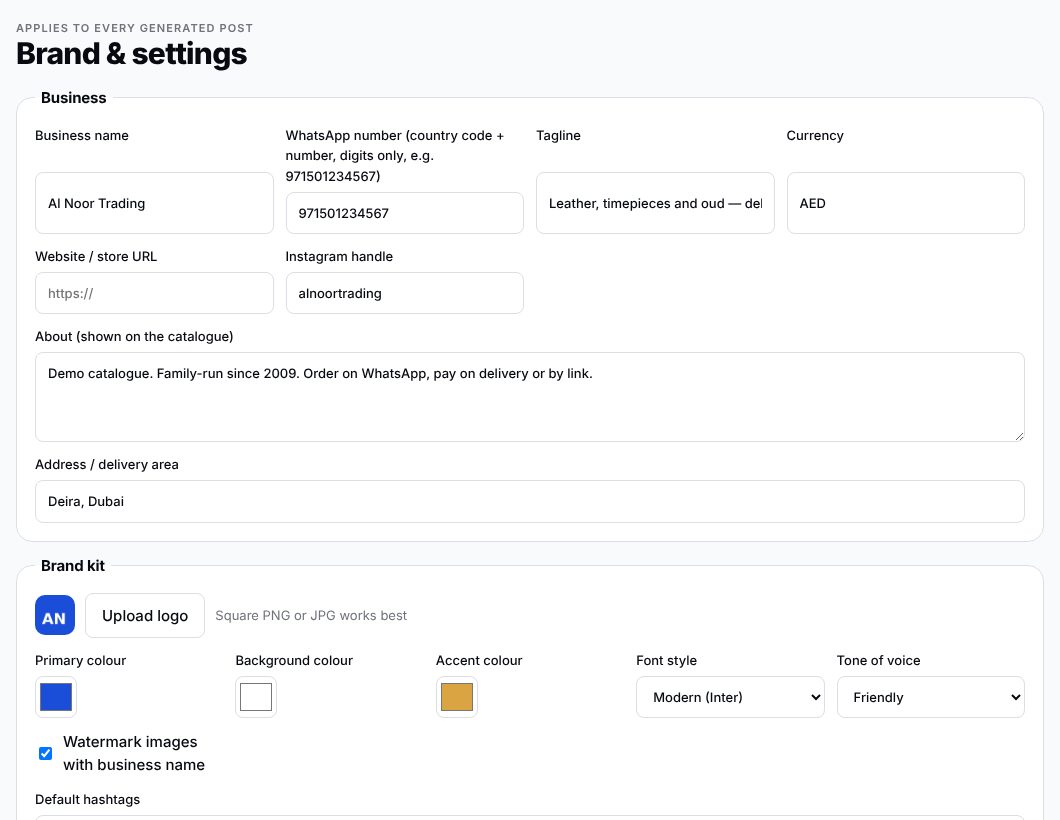
Under Brand & settings, upload your logo, pick three colours, a font style and a tone of voice. Every generated image and caption uses them, and your catalogue header takes the primary colour.
Backup and restore
Your data is stored separately from the app, so updates never touch it. For extra safety, download a full backup any time: one ZIP with your settings, products, orders and every image.

Password and security
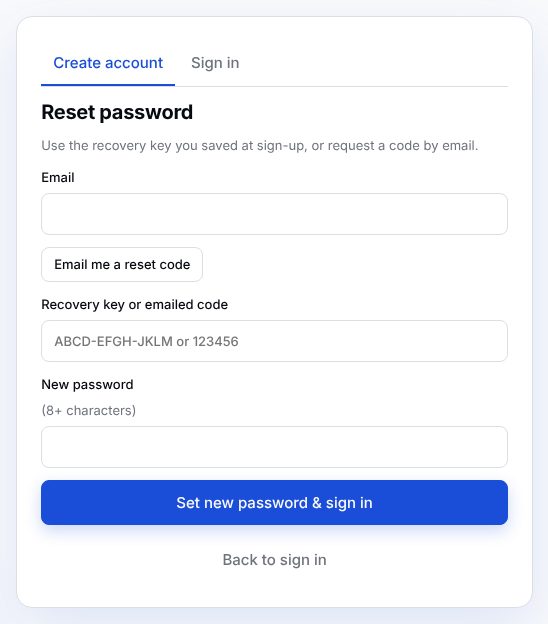
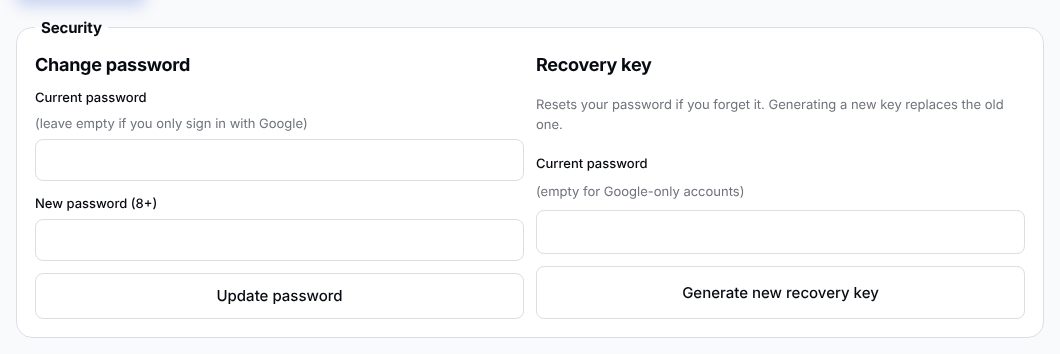
Change your password or issue a new recovery key from the Security section. Accounts created with Google have no password until you set one here.
Common questions
Do my customers need to install anything?
No. The catalogue is a web page. Ordering opens their existing WhatsApp with the message ready to send.
How do I take payment?
In the WhatsApp chat, as you do today: cash on delivery, bank transfer, or a payment link from your provider. The order message carries the reference and total.
Can I hide a product without deleting it?
Yes. Set its status to Draft. It disappears from the catalogue and stays in your list.
Why does my WhatsApp link not open?
The number must be digits only with the country code and no leading 0, e.g. 971501234567. Check it in Brand & settings.
Can I use my own domain?
Yes. Ask us to connect it; your catalogue links and QR codes will then use your domain.
Light or dark mode?
Light is the default. Use the sun/moon button in the header or sidebar to switch; the choice is remembered on that device.
What does it cost?
Every account starts with a 14-day free trial with everything included. After that it is AED 99 per year, paid by card through Ziina from Overview → Subscription. If the trial ends without a subscription, the public catalogue is paused (nothing is deleted) until you subscribe.
How do AI writing credits work?
Each account gets 1,000 AI generations per calendar year. One credit writes a complete product (hook, highlights, description, Arabic translation, hashtags and keywords) from the product editor, or rewrites one caption in the post studio. The counter resets every 1 January.
Can I try it before adding my own products?
Yes. On Overview, tap Load sample products to add four sample items with photos and three sample posts. Remove samples deletes them again.
Can I make a PDF catalogue of only some products?
Yes. Open Catalogue builder, tick the items, edit the header (title, subtitle, note) and footer (terms, contact), then choose PDF catalogue (A4, with page numbers), a grid image, a WhatsApp list, or a share link that opens just those items. The header and footer also appear on your public catalogue.
Is my data safe when the portal updates?
Yes. Data lives in storage that is independent of the app code, and you can download a complete backup at any time from Brand & settings.